Choosing a laptop for video editing is about matching the machine to your footage and workflow. 4K ProRes, 10-bit H.265, and multicam timelines have different demands. The right pick balances processor, graphics, memory, storage, and display so you don’t waste time on renders or proxies.
How to Choose the Right Laptop for Video Editing
Start with your camera and delivery specs. A 4K 10-bit H.265 clip from a Sony A7 IV needs more GPU decode than 1080p H.264 from a phone. Your laptop must handle that codec natively or you’ll rely on proxies.
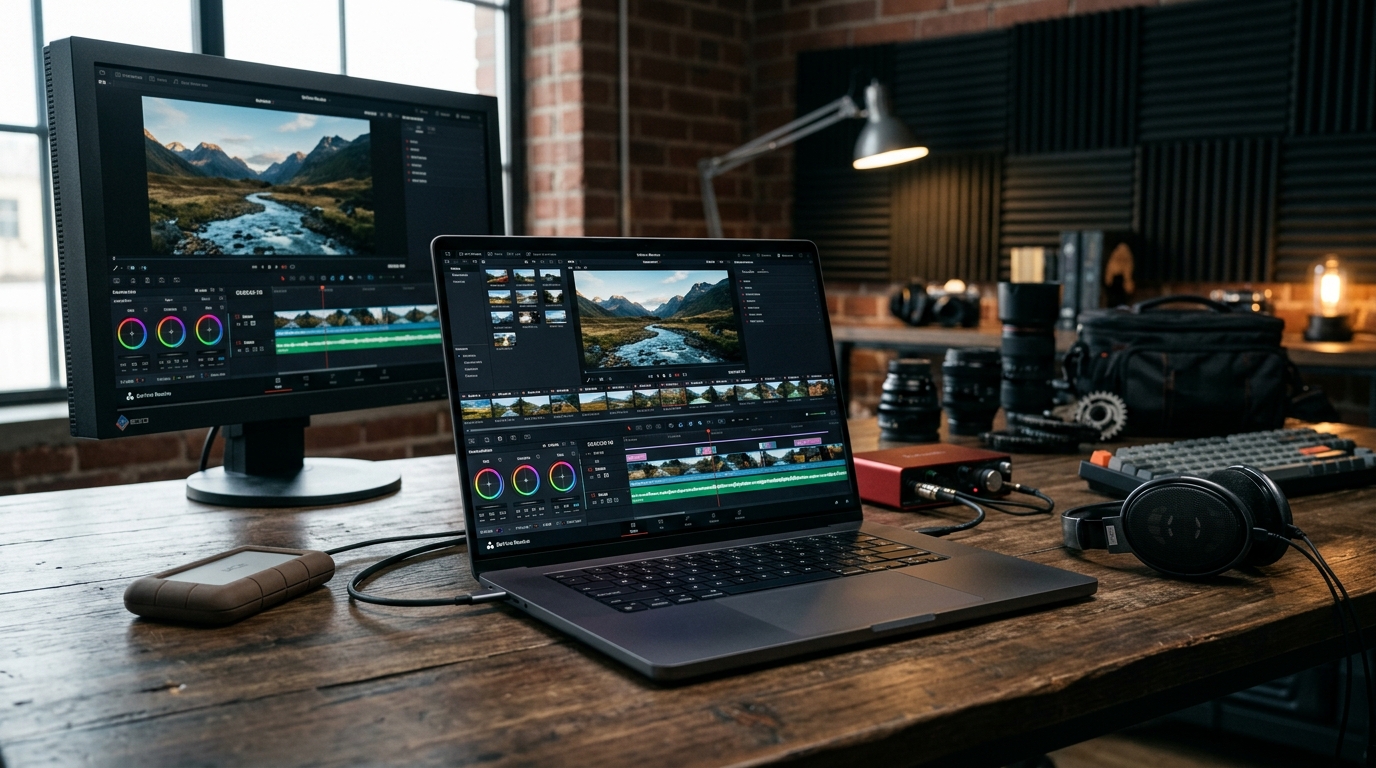
In practice, editors using DaVinci Resolve 19 and Adobe Premiere Pro 2025 report the biggest gains from GPU acceleration and fast storage. CPU still matters for effects and export, but the GPU handles color, noise reduction, and timeline playback.
CPU: Cores and Clock Speed
Look for 8 to 16 performance cores. Apple’s M4 Pro in the 14-inch MacBook Pro has 12 performance cores and 4 efficiency cores, which handles 8K ProRes playback without proxies. On Windows, Intel Core Ultra 9 285H and AMD Ryzen AI 9 HX 370 offer similar core counts.
Higher clock speeds help with single-threaded tasks like scrubbing and applying LUTs. Don’t chase core count alone. A 14-core CPU with thermal throttling can underperform a 10-core chip with better cooling.
GPU: VRAM and Media Engines
VRAM matters more than raw teraflops for video editing. 8GB is the minimum for 4K timelines with color grading. 12GB or more handles 8K and multiple noise reduction nodes in Resolve.
Nvidia’s RTX 4070 laptop GPU with 8GB and Apple’s M4 Max with 40-core GPU are common picks. Both have dedicated media engines for H.264 and H.265 decode, which cuts timeline stutter.
RAM: 16GB Is the Floor, 32GB Is Safer
16GB works for 1080p and light 4K. 32GB is the practical sweet spot for 4K multicam and After Effects Dynamic Link. 64GB helps if you run Resolve, Premiere, and Audition at once.
Soldered RAM means you can’t upgrade later. Check that before buying a thin-and-light.
Storage: Speed and Capacity
You need at least 1TB NVMe SSD. 4K ProRes 422 HQ eats about 880MB per second, so a 30-minute interview can hit 1.5TB. External Thunderbolt 4 or USB4 drives help, but internal storage keeps cache and previews fast.
Look for PCIe Gen4 or Gen5 drives with read speeds above 5,000MB/s. That speeds up imports and project loading.
Display: Color Accuracy Beats Resolution
A 100% DCI-P3 or Adobe RGB display with Delta E under 2 is more useful than a 4K panel with poor color. OLED and mini-LED panels offer better contrast for HDR grading.
14 to 16 inches is the practical range. A 16-inch 16:10 screen gives more timeline room than a 15.6-inch 16:9.
Top Laptop Picks for Video Editing in 2025
These picks cover different budgets and operating systems. Each one has been tested by editors on real 4K and 6K projects.
Apple MacBook Pro 16-inch (M4 Max)
The M4 Max with 40-core GPU and 48GB unified memory plays back 8K ProRes RAW in Resolve without proxies. Its mini-LED display hits 1,600 nits peak HDR and covers 100% DCI-P3.
Battery life runs 14 to 18 hours on light edits. The trade-off is price, starting around $3,499, and no Nvidia CUDA for Windows-only plugins.
Dell XPS 16 (Intel Core Ultra 9, RTX 4070)
Dell’s XPS 16 pairs a 16-core Core Ultra 9 185H with an RTX 4070 and 32GB LPDDR5x. It handles 4K H.265 in Premiere with GPU acceleration.
The 16.3-inch OLED covers 100% DCI-P3 and hits 400 nits. It’s a strong Windows alternative for editors who need CUDA.
ASUS ProArt Studiobook 16 OLED
This is a creator-focused machine with a 16-inch 4K OLED, 100% DCI-P3, and a physical dial for scrubbing timelines. It ships with up to RTX 4070 and 64GB RAM.
It’s heavier at 5.2 pounds, but the color accuracy out of the box is among the best on Windows.
Lenovo ThinkPad P1 Gen 7
The P1 Gen 7 offers a 16-inch 4K OLED, Intel Core Ultra 9, and RTX 4070 in a 3.9-pound chassis. It’s a good pick if you move between studio and set.
Lenovo’s keyboard and port selection, including two Thunderbolt 4 ports and an SD Express card reader, suit field editors.
Budget Pick: Acer Swift X 14
For under $1,200, the Swift X 14 pairs a Ryzen 7 8845HS with an RTX 4050 and 16GB RAM. It edits 1080p and light 4K H.264 without proxies.
The 14.5-inch OLED covers 100% DCI-P3. It struggles with 10-bit H.265 and heavy noise reduction, so it’s best for shorter projects.
Mac vs Windows for Video Editing
Macs win on battery life, silent operation, and ProRes acceleration. Final Cut Pro is Mac-only and uses the media engine for near-instant exports.
Windows wins on upgradeability, CUDA support, and lower prices for equivalent GPU power. Premiere Pro and Resolve run well on both, but plugins like Neat Video and Red Giant lean on CUDA.
If your clients deliver ProRes and you value portability, Mac is simpler. If you need CUDA or use Windows-only tools, pick a Windows machine with an RTX 4070 or better.
What to Avoid When Buying a Video Editing Laptop
Some specs look good on paper but hurt real editing. Watch for these traps.
- 8GB RAM with a discrete GPU: the GPU will starve during 4K playback.
- 4K displays with 60% sRGB: colors won’t match your delivery target.
- Thin chassis with a 45W CPU and no vapor chamber: thermal throttling cuts export speed by 30% or more.
- Single-channel memory: dual-channel gives 15 to 25% faster timeline scrubbing.
- 256GB SSD: you’ll fill it with cache in a week.
In practice, a laptop with a 14-core CPU, RTX 4060, 32GB dual-channel RAM, 1TB Gen4 SSD, and a 100% DCI-P3 panel will outperform a 16-core CPU with 16GB single-channel RAM and a dim 4K screen.
Future-Proofing Your Purchase
Buy for the footage you’ll shoot in two years, not just today. 8K and 10-bit H.265 are becoming standard on mirrorless cameras like the Canon R5 II and Sony A1 II.
Look for Thunderbolt 5 or USB4 v2 for 80Gbps external storage. Wi-Fi 7 helps with cloud proxies and remote collaboration.
Apple’s M4 Max and Intel’s Core Ultra 9 both support hardware AV1 encode, which speeds up uploads to YouTube and Vimeo. That’s a real time saver if you publish weekly.
Conclusion
The best laptop for video editing is the one that matches your codec, budget, and OS preference. For most 4K editors, a 16-inch MacBook Pro with M4 Max or a Dell XPS 16 with RTX 4070 covers the bases.
If you’re on a budget, the Acer Swift X 14 handles 1080p and light 4K well. Prioritize RAM, GPU VRAM, and display color over raw core count. That’s what keeps your timeline smooth and your exports fast.
Q: How much RAM do I need for 4K video editing?
16GB is the minimum for 1080p and light 4K. For 4K multicam, 10-bit color, or After Effects Dynamic Link, 32GB is the practical sweet spot. If you run Resolve, Premiere, and Audition at once, 64GB prevents slowdowns. Soldered RAM can’t be upgraded later, so buy more than you need today.
Q: Is a MacBook Pro or Windows laptop better for video editing?
Macs win on battery life, silent fans, and ProRes acceleration, which speeds up Final Cut Pro exports. Windows wins on CUDA support, upgradeability, and lower prices for equivalent GPU power. If you use Neat Video, Red Giant, or Windows-only tools, pick a Windows machine with an RTX 4070 or better. Both run Premiere Pro and Resolve well.
Q: Do I need a dedicated GPU for video editing?
Yes, for 4K and 8K work. A dedicated GPU with 8GB VRAM handles color grading, noise reduction, and timeline playback. Integrated graphics struggle with 10-bit H.265 and multicam timelines. Nvidia RTX 4060 or better, or Apple’s M4 Pro or Max, are solid picks. VRAM matters more than raw teraflops for editing.
Q: What display specs matter most for editing?
Color accuracy beats resolution. Look for 100% DCI-P3 or Adobe RGB coverage and Delta E under 2. A 16-inch 16:10 screen gives more timeline room than 15.6-inch 16:9. OLED and mini-LED panels offer better HDR contrast for grading. A 4K panel with 60% sRGB will mislead your color decisions.
Q: How much storage do I need for video editing?
At least 1TB NVMe SSD internally. 4K ProRes 422 HQ uses about 880MB per second, so a 30-minute interview can hit 1.5TB. Use Thunderbolt 4 or USB4 external drives for project archives. Look for PCIe Gen4 or Gen5 drives with read speeds above 5,000MB/s to speed up imports and cache playback.
Article Was Generated By AI.